
You must be signed in as an administrator on the Mac or provide an administrator name and password to complete these steps.
Remove Office for Mac applications
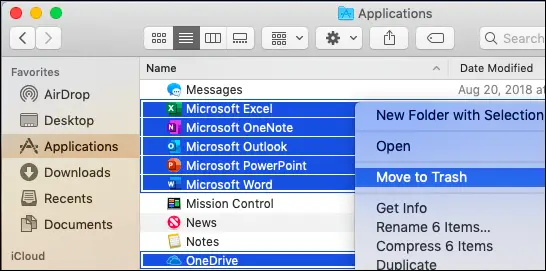
- Open Finder > Applications.
- Command +click to select all of the Office for Mac applications.
- Ctrl+click an application you selected and click Move to Trash.
Remove files from your user Library folder
- In Finder, press +Shift+g.
- In the window that opens, enter ~/Library and then click Go.
- Open the Containers folder and ctrl+click each of these folders and Move to Trash. Note that some of these folders may not be present.
- com.microsoft.errorreporting
- com.microsoft.Excel
- com.microsoft.netlib.shipassertprocess
- com.microsoft.Office365ServiceV2
- com.microsoft.Outlook
- com.microsoft.Powerpoint
- com.microsoft.RMS-XPCService
- com.microsoft.Word
- com.microsoft.onenote.mac
-
Warning: Outlook data will be removed when you move the three folders listed in this step to Trash. You should back up these folders before you delete them.
Click the back arrow to go back to the Library folder and open Group Containers. Ctrl+click each of these folders if present, and Move to Trash.
- UBF8T346G9.ms
- UBF8T346G9.Office
- UBF8T346G9.OfficeOsfWebHost
Remove from Dock and restart
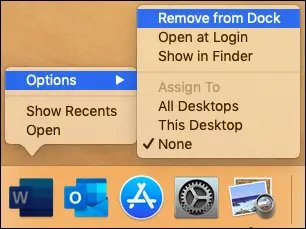
1. If you put any of the Office applications in your Dock, go to each one and ctrl + click > Options > Remove from Dock.
2. Restart your Mac to complete the uninstall.