You may perform a clean install of Windows 10 on a Laptop or Desktop PC with a USB Drive by following the steps below.
Note: Before the installation, you need to prepare a writable USB drive with at least 4 GB available storage.
Step 1: Get into a PC device that is accessible to internet.
Step 2: Open the site: Microsoft software download.
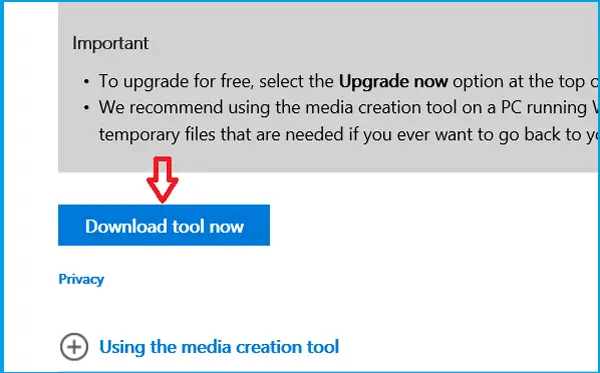
Step 3: Click on the “Download tool now” button to download the Media Creation Tool. Save the MediaCreationTool to your PC device.
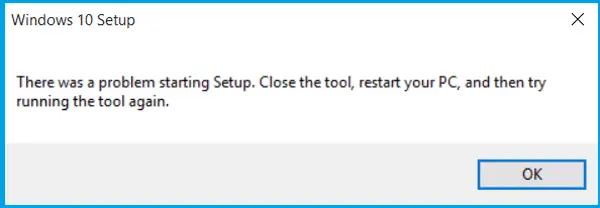
Step 4: Restart your PC device, and then run the Media Creation Tool.
If do not restart your PC device, you will get the prompt saying that there was a problem starting Setup.
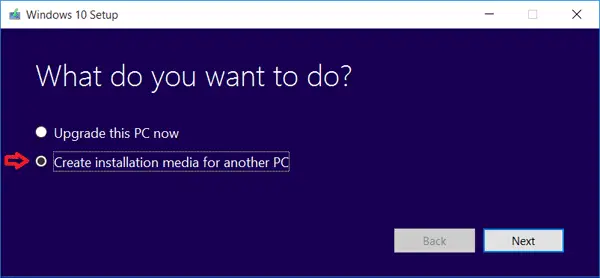
Step 5: On the Windows 10 Setup screen, select “Create installation media for another PC”, and click on “Next”
Step 6: Select the language, edition, and architecture on the drop down list, and then click on “Next“.
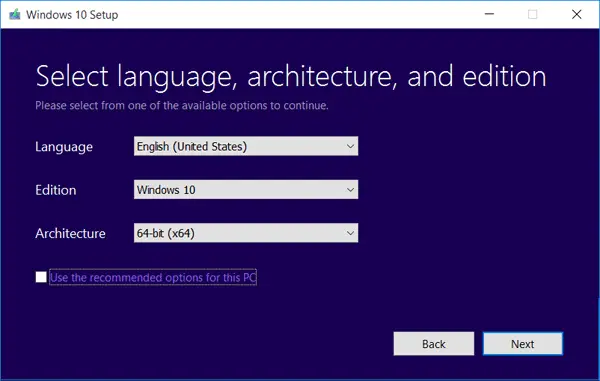
You also can select the option “Use the recommended options for this PC”, if you don’t know which architecture to select for this PC.
But on the other PC devices the architecture may be different, go to the PC that you want to clean install Windows 10, right-click on “Computer”, select “Properties”, and then you will see the System type.
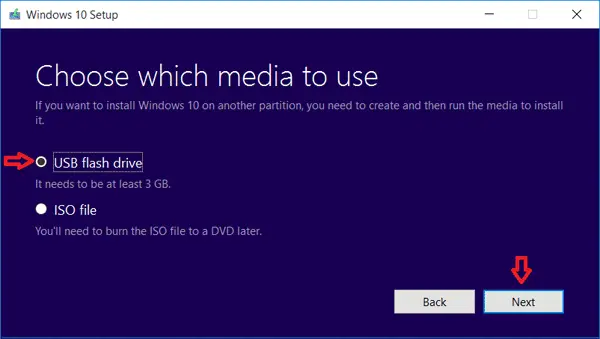
Step 7: Choose the “USB flash drive”, insert your USB drive into this PC, and then click on “Next”.
Step 8: Select your USB drive below the Removable drives, and then click on “Next”.
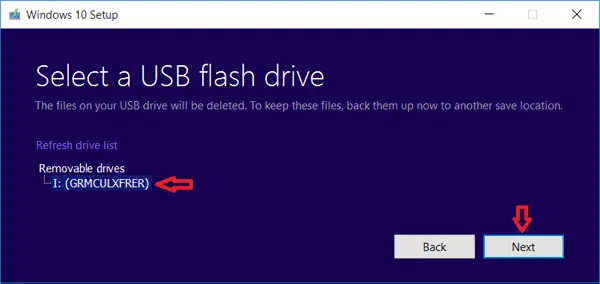
Note: The files on your USB drive will be deleted. If still want to keep the files, remove them to another save place.
Step 9: It will begin to download Windows 10 to your USB, please wait for it patiently. During the downloading process you can feel free to use your PC device, such as watch movie or work.
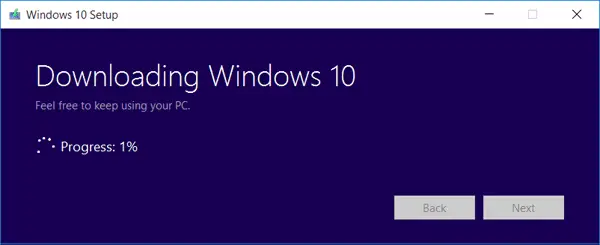
Step 10: After downloading, the Windows 10 USB installation media is created, click on “Finish” to close the dialog.
Step 11: Take the USB flash drive insert into the PC device that you want to install Windows 10.
Step 12: Open the USB drive, double click on the “setup.exe” file to start Windows 10 installation process.
Step 13: Or go to your PC’s BIOS or UEFI settings to set your PC to boot from the USB drive.
Restart your PC device, and press the boot menu key (F2, Delete, Esc, or F12 that depends on your device.) immediately to get into BIOS settings.
Move to the boot menu, and set your USB drive to the first boot option.
Press F10 to save the change and restart your PC device.
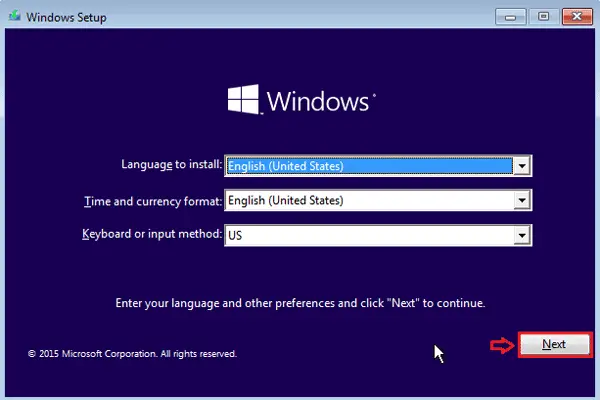
Step 14: When your PC device boot from the USB flash successfully, it will go to the Windows 10 installation screen.
Select the language and other preferences, click on “Next”.
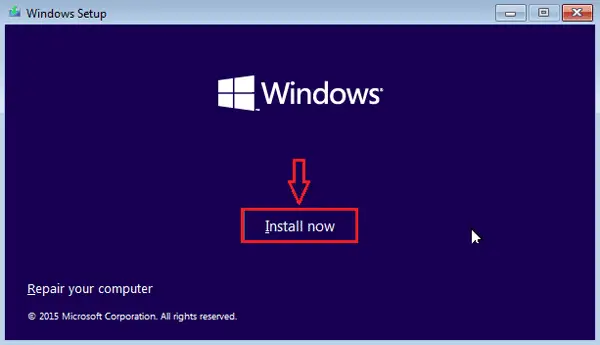
Step 15: Click on “Install Windows”.
Step 16: Enter the product key, and click on “Next”.
- If you have already activated Windows 10 on this PC before, you do not need to activate it any more, click on the “Skip” button to skip this step. Your PC will be activated automatically after installation.
- If the previous version of system on this PC is Windows 7/8/8.1, you can enter the Windows 7/8/8.1 product key to activate your Windows 10 system.
- If the previous edition of system on this PC is Windows XP/Vista, you need to pay for to get a Windows 10 Product key.
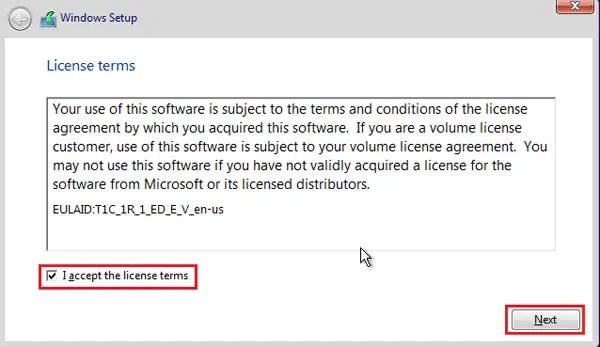
Step 17: Accept the license terms, and click on “Next”.
Step 18: Select the “Custom Install” type of installation.
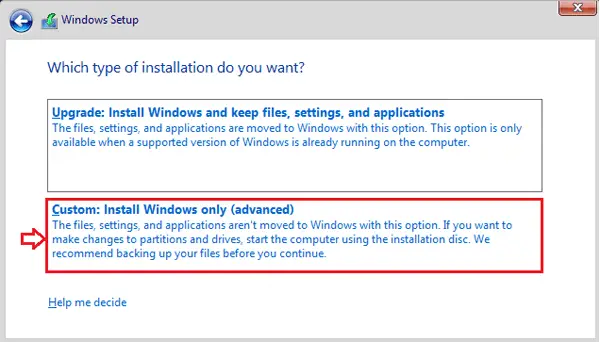
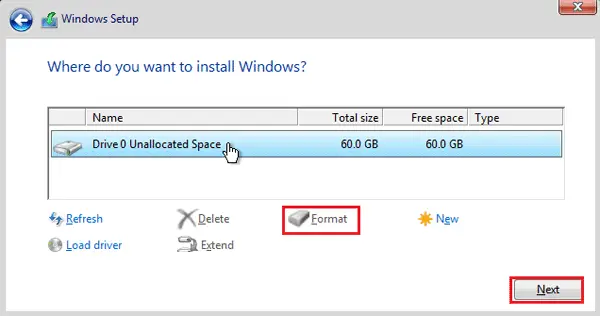
Step 19: Select the partition where you want to install Windows, and select the formatting option, and then the partition you select will be formatted. After formatted, click on “Next”.
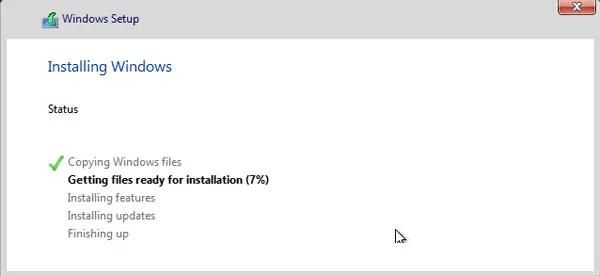
Step 20: The Windows 10 installing process begins, your PC will restart several times to copy Windows files, get files ready for installation, install features, and install updates automatically.
These processes will take times, please wait patiently.
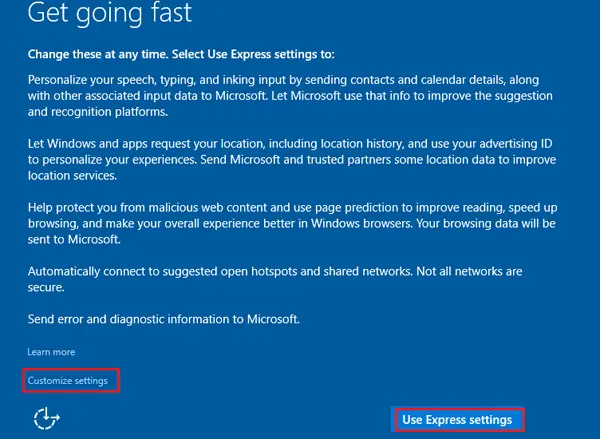
Step 21: When Windows 10 is installed, select “Use Express settings”, or click on “Customize settings” to setup your prefer settings.